1
Download the CSV template
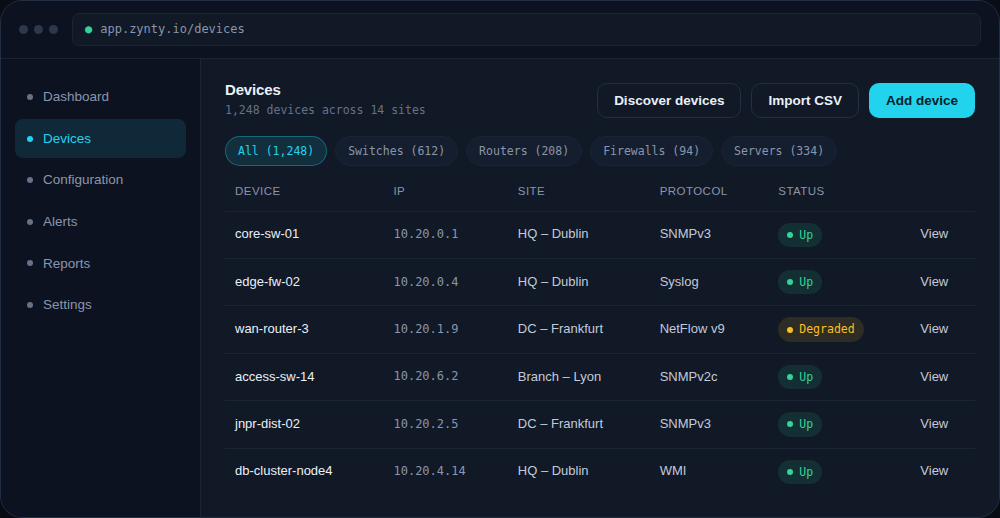
From Devices > Import CSV, download the template to see the expected columns: name, ip, site, protocol, and protocol-specific credential fields.
1
2
Map your existing data
Fill in one row per device. You can leave credential columns blank and assign a shared credential profile afterward instead, useful if many devices share the same SNMP community or SSH key.
3
Upload and review
Zynty validates the file before import, flagging duplicate IPs, missing required fields, or unrecognized protocol values, and shows you a preview before anything is created.
4
Confirm the import
Once confirmed, devices appear in your inventory immediately and begin polling on the next collector cycle.